How do I create an account? Google Play has become one of the most frequently asked questions, especially with the widespread use of Android devices, as relying on the Google Play store has become an integral part of using smartphones.
Many users are looking for a way to create a Google Play account to access the thousands of apps, games, and various services offered by Google. Without this account, users are deprived of the full Android experience, whether it's downloading apps, managing purchases, or saving data to the cloud.
In this guide, you'll learn step-by-step how to easily and securely create a Google Play account, from setting up the basic account to activating and using it for purchases and transactions. This guide is based on the latest official Google guidelines to ensure a smooth and safe experience for all users.
How do I create a Google Play account?
To create a Google Play account, users must have a primary Google account containing their basic personal information such as name, date of birth, and email address. Google also sets general terms and conditions that cannot be exceeded to ensure account security and safe use.
- In most Arab countries, users must be over 13 years old to be able to use Google Play services.
- Entering your real name and date of birth correctly is required to activate all account features.
- Registration is not possible without an email address, and a Gmail or any other email address can be used.
How do I start registering?
To start creating a new Google Play account, follow a simple sequence of steps, which shows you how to create a Google Play account in an easy and quick way without needing technical expertise.
- Go to the Google login page via your web browser or the Gmail app.
- Click on the "Create Account" option and then select "For Personal Use".
- Enter the full name (first name and last name) in the designated fields.
- Choose an English username that has not been used before to be your new email address.
- Create a strong password containing letters, numbers, and symbols, then confirm it to complete the step.
- You can choose to create a new email in Gmail or enter an existing email to receive a verification code.
- Enter the verification code sent by email to confirm ownership.
- Finally, agree to the Terms of Service and Privacy Policy to complete registration.
After completing these steps, the account is ready for use and can be directly linked to the Google Play app on any Android device.
How do I choose my email and username?
Choosing an email address and username is an important step because they will remain permanently linked to your Google Play account. It's best to choose a name that reflects your real identity or is easy to remember, avoiding unusual symbols or long words. If the name is rejected because it's already in use, Google will suggest similar alternatives that you can easily use.
Is adding a phone number necessary?
Adding a phone number is not mandatory when creating a Google Play account, but it is an important step that improves security.
This extension allows you to recover your account if you forget your password or if an unknown login attempt occurs. It also enables two-step verification, making your account more secure and reliable.
How do I link my account to the Google Play Store?
Linking your account is a crucial step for using the Google Play Store and accessing various Google services. This guide will help you understand how to create a Google Play account and link it to your device. Once linked, you can easily download and update apps, and sync your data across all devices connected to the same account.
What are the steps to link an account?
- Go to "Settings" on your Android device.
- Select "Accounts" from the list of options.
- Click on "Add account" and then select "Google".
- Enter your account details, including email address and password.
- They agreed to the terms and conditions to complete the transaction.
After these steps, your account will be automatically activated on the Google Play Store and on all apps associated with Google services.
Can multiple accounts be linked?
Yes, the system allows you to add multiple Google accounts to the same device, and you can easily switch between them from within the account settings or directly from the Google Play Store. This also shows you how to create and manage your Google Play account flexibly. This feature is useful for managing personal and work accounts simultaneously without the need for frequent logout.
What services are available after connection?
- Email (Gmail): You can access, send, and synchronize your messages instantly.
- Google Play Store: Allows downloading and updating apps and games using the linked account.
- Cloud storage (Google Drive): To store, share, and access files from anywhere.
- Google Photos: To save photos and videos with automatic synchronization.
These services integrate with your Google account to provide a seamless user experience and secure data synchronization across all your devices.
What are the best Google Play gift cards available?
The store is considered Techcard One of the leading Arabic platforms offering Google Play gift cards in various denominations securely and quickly. The store features instant delivery of digital codes, 24/7 technical support, acceptance of local payment methods, and competitive prices, making the online shopping experience convenient. Discover the top products in the Digital Stores section.
Google Play 300 Saudi Riyals
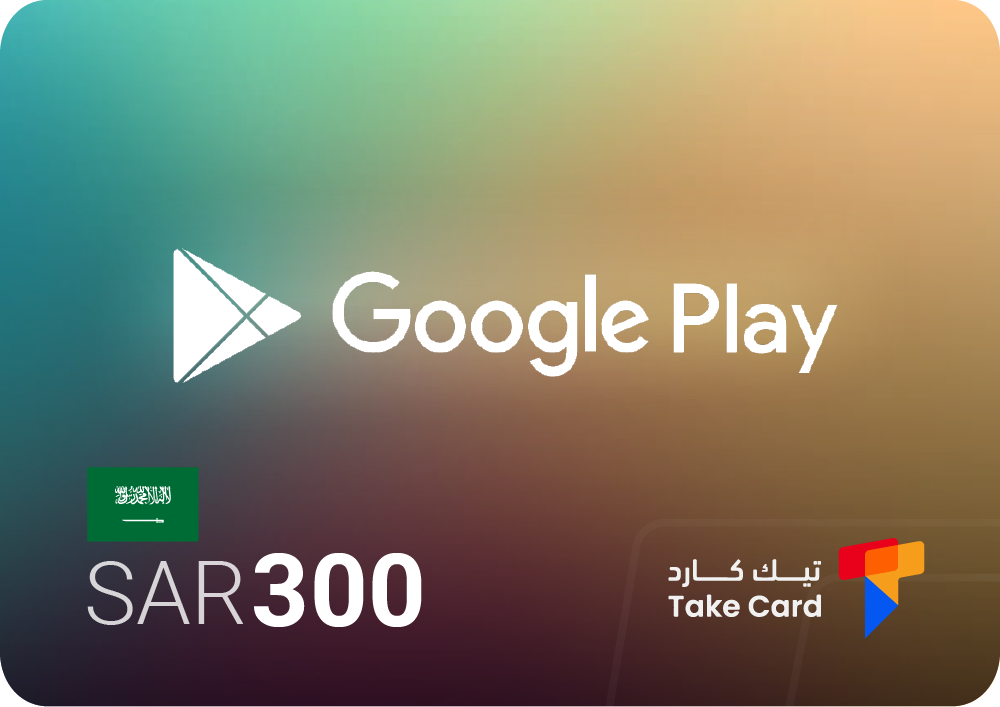
A 300 Saudi Riyal Google Play gift card gives you greater freedom to enjoy a wide range of apps, games, and subscriptions available on the Saudi Google Play Store. It can be easily purchased from TechCard store with instant delivery of the digital code after payment.
Google Play UAE 500 AED
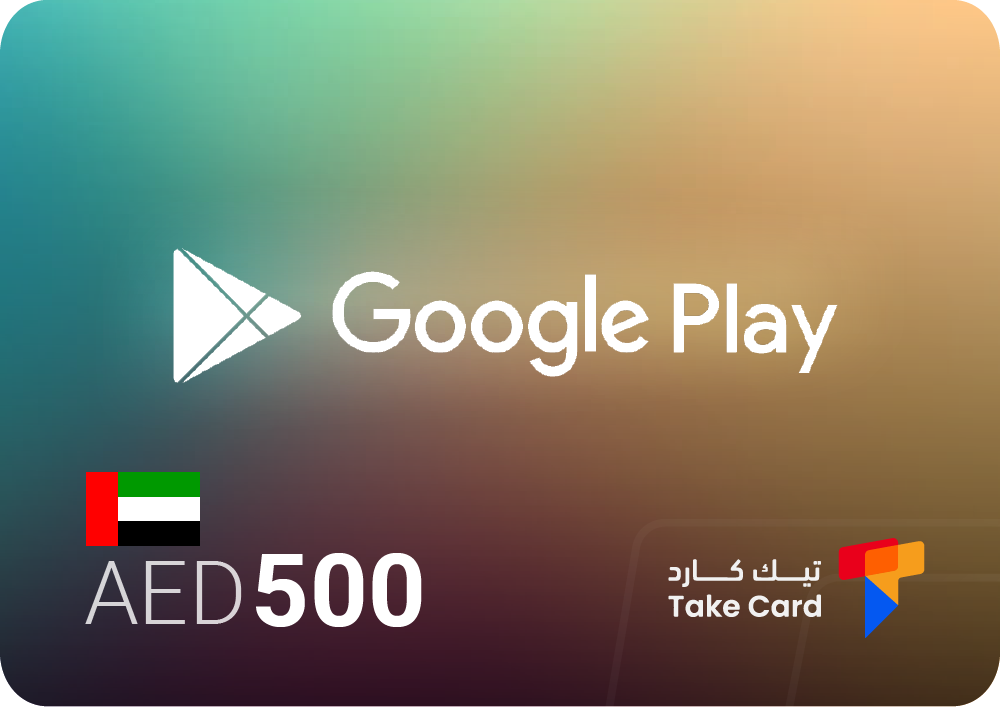
The 500 AED Google Play gift card is designed for users in the UAE and allows you to easily purchase apps, games, and digital content from the UAE Google Play store. After completing your purchase with TechCard, the digital code is instantly sent to your account, making it an ideal option for quick use.
Google Play 200 Saudi Riyals
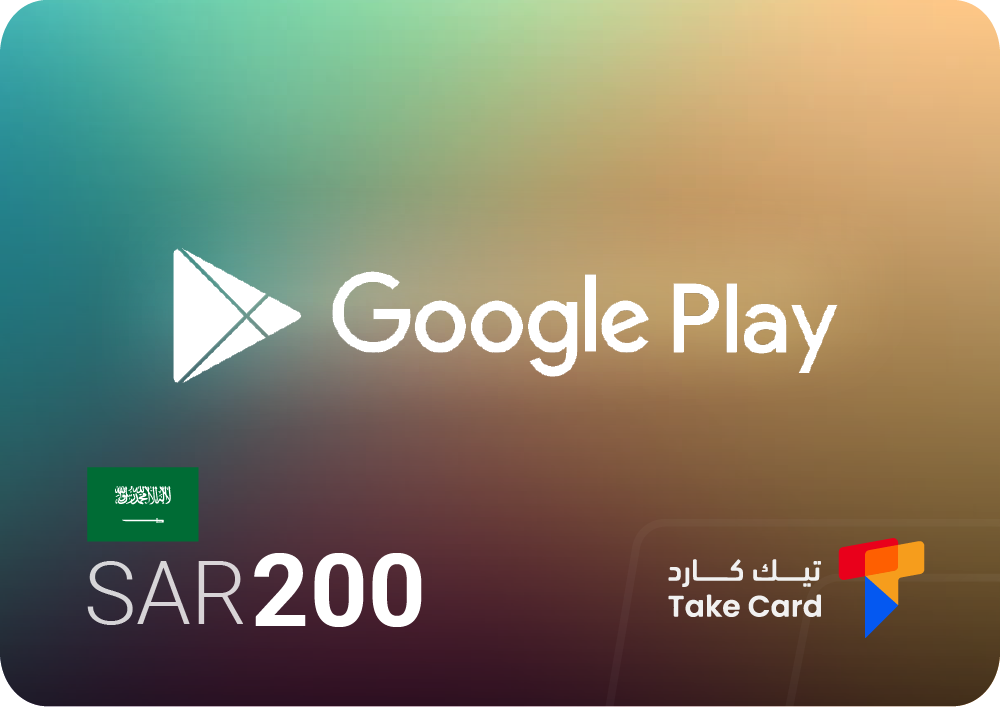
A 200 Saudi Riyal Google Play gift card is a great option for those looking to top up their balance or give it as a gift. It can be easily used to purchase apps, games, movies, and ebooks within the Kingdom through the Google Play Store. It's available for purchase from the TechCard store with instant digital delivery.
How do I top up my Google Play account balance?
You can top up your Google Play account using gift cards specific to the country to which the account is linked, such as Saudi or Emirati cards. Through these steps, you will also learn how to create a Google Play account and use it to purchase apps, movies, and games easily and securely within the store.
How to pay via the app
- Open the Google Play app on your phone or tablet.
- Click on the profile in the top corner to open the side menu.
- Choose your payment and subscription options from the available choices.
- Click on Redeem Gift Card Code or Redeem option.
- Write the code carefully and accurately exactly as it appears on the card.
- Click on Redeem to confirm the transaction and add the balance to your account directly.
Shipping method via browser
- Go to the official page via this link: https://play.google.com/redeem .
- Sign in using the Google account linked to the Play Store.
- Enter the gift card code in the designated field.
- Click on Redeem to have the balance added to your account immediately.
What are the tips for safe shipping?
- Use cards that are compatible with the country to which the account is linked. A Saudi card cannot be used on an Emirati account or vice versa.
- Purchase cards only from official and authorized online stores to avoid fraud and ensure you receive the code quickly.
- Do not share the card code with anyone, as it is non-refundable and non-cancellable once activated.
- The balance can only be used within the local Google Play store, and it does not expire over time.
Following these steps will ensure you have a safe and fast Google Play balance top-up experience and take full advantage of all the store's features.
Frequently asked questions about how to create a Google Play account
Is it possible to create a Google Play account without Gmail?
Yes, you can use any email address other than Gmail when creating a Google account, but it is preferable to use Gmail because it offers better integration with various Google services.
How long does it take to create a Google Play account?
The account creation process takes no more than 5 minutes, provided that the data is entered correctly and the email address or phone number is confirmed.
Is creating a Google Play account free?
Yes, creating a Google Play account is completely free, and there are no fees for registration or basic use.
With a few simple steps, you can now learn how to create a Google Play account and link it to your devices to take advantage of Google's various services. You'll be able to download apps, manage purchases, and use digital payment methods securely and easily, giving you a complete technological experience that fits your digital lifestyle.