
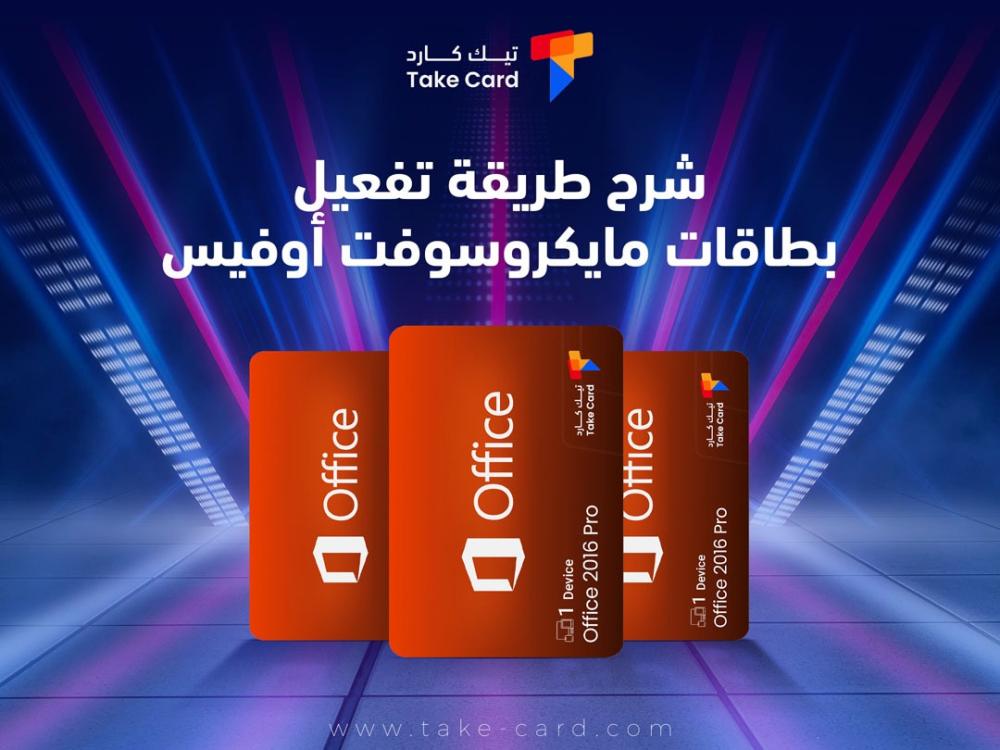
In the world of modern software, Microsoft Office cards have become an effective way to obtain original licenses easily and securely, whether for office work, study, or personal projects. These cards allow users to install programs such as Word, Excel, and PowerPoint on their devices without the need to purchase them directly through online stores, while guaranteeing full usage rights. Explaining how to activate Microsoft Office cards is an essential step to ensure that the programs work efficiently and benefit from all available features. This involves entering the digital code on the official Microsoft website and linking the license to the user's account, which facilitates managing and using licenses on different devices.
Explanation of how to activate Microsoft Office cards
Explaining how to activate Microsoft Office cards requires knowing that the steps are very easy, as they allow you to benefit from all official Office programs on your various devices, whether you are using a computer, phone, or tablet. Here are the basic steps to activate the card correctly:
- Sign in to your Microsoft account: Open the official Microsoft recovery page and sign in using your active account.
- Card code entry: Enter the 25-character and number numerical code found on the card.
- Follow the on-screen instructions: Press Next to confirm the code and link it to your account.
- Activation verification: After completing the process, check that programs such as Word and Excel work without any restrictions.
- Activation on other devices: You can log in with the same account on any other device to easily activate the license on it.
- Keep the code and receipt: Keep a copy of the code and receipt for review or refund in case of any problem.
What are Microsoft Office cards?
Microsoft Office cards are digital cards that give users an official license to access Microsoft Office programs such as Word, Excel, PowerPoint, and Outlook, whether for personal, family, or business use. These cards usually come with a digital code (25 characters and numbers) that can be entered into a Microsoft account to activate the license directly without the need for traditional in-store purchases or a credit card.
Tips to avoid errors during activation
Activating Microsoft Office cards may encounter some obstacles if the steps are not followed precisely, but with some simple tips, common mistakes can be avoided and a smooth and secure experience ensured. Here are the tips:
- Digital code verification: Make sure that the 25-character and number code is entered accurately without any spaces or errors.
- Using a proper Microsoft account: Use the account you wish to link the license to, and avoid using temporary or inactive accounts.
- A stable internet connection is required: You must be connected to the internet during activation to confirm the code and communicate with Microsoft servers.
- Do not share the code with others: The code is unique and linked to your account; sharing the code may result in loss of license.
- Verify version compatibility: Check that the card type is compatible with the version of Office to be activated (e.g., Office 2019 or Microsoft 365).
- Keep the code and receipt: Keep a picture of the code and invoice as a reference in case any problem occurs during activation.
Advantages of using Microsoft Office digital cards
Microsoft Office digital cards are an ideal option for obtaining official licenses for office software easily and securely, as they offer a range of benefits that make the Office experience more flexible and efficient.
- Easy activation and use: The programs can be activated directly by entering the digital code into the Microsoft account without the need for bank cards or complicated steps.
- Legal and original license: The card guarantees the user an original copy of Office with all rights and ongoing updates.
- Device flexibility: The license can be linked to a number of devices depending on the card type, whether on a computer, phone, or tablet.
- Protection against pirated copies: Using the digital card reduces the risk of installing illegal software that could compromise the security of your device and data.
- Continuous updates and official support: The user receives all new updates and technical support directly from Microsoft.
- Easy to retain and manage licenses: All licenses associated with a single account can be easily managed without losing any license or code.
Ways to obtain genuine Microsoft Office cards
Obtaining genuine Microsoft Office cards is essential to ensure proper activation and complete protection of your programs. Here's how to get the cards:
- The official Microsoft store: The best option for obtaining genuine licenses with direct support and guaranteed activation without any risks.
- Locally authorized distributors: Cards can be purchased from trusted electronics stores or from resellers officially authorized by Microsoft.
- Trusted sites with high ratings: There are well-known platforms that sell genuine digital cards, provided you check customer ratings and reviews before purchasing.
- Buying from large stores: such as hardware and computer stores that offer Office cards as part of hardware deals or with clear warranties.
- Stay away from unknown sites: Avoid platforms with poor ratings or that offer unreasonably low prices because they are often unreliable.
How to check card validity before activation
Before activating Microsoft Office cards, it is important to ensure the card is valid to guarantee the success of the process and avoid any problems during activation. There are several ways to check that the card is valid and has not been used previously:
- Check the expiry date: Some cards have an expiry date printed on the card or mentioned in the email at the time of purchase. Make sure the card has not exceeded this date.
- Review the source of purchase: Buy cards from an official Microsoft store or authorized distributors to avoid counterfeit or previously used codes.
- Digital code verification: Before activation, make sure that the code is complete, correct, and consists of 25 characters and numbers without any changes or spaces.
- Using the official recovery page: You can enter the code on the Microsoft recovery page to see if the code is valid before starting the installation.
- Keep the invoice or receipt: Having proof of purchase will help you if you encounter any problem while checking the validity of the card or requesting a replacement.
Frequently Asked Questions
How can I activate my Microsoft Office card on my account?
Open the official redemption page on the Microsoft website, sign in with your Microsoft account, then enter the 25-character and number code found on the card and click Next to complete activation. After that, the license will be linked to your account and you can use Office programs on your devices.
Can the same card be used to activate Office on more than one device?
Yes, depending on the type of license, you can activate Office on multiple devices. Microsoft 365 Family cards allow licensing for multiple users and devices, while Office 2019 or individual cards usually allow activation on only one device.
What should I do if the card code appears to be already in use?
If you receive a message stating that the code is already in use, first check that the code has not been previously activated on another of your accounts. If the code is new and has not been activated before, contact the customer service of the place where you purchased the card to issue an alternative code or a refund.
Finally, Microsoft Office digital cards are an easy and secure way to obtain genuine licenses and efficiently utilize all Office programs.
By explaining how to activate Microsoft Office cards, any user can quickly install software on their devices and easily manage licenses. Always make sure to purchase cards from trusted sources to ensure a smooth and problem-free experience.
Read also: How do I use US Google Play gift cards?