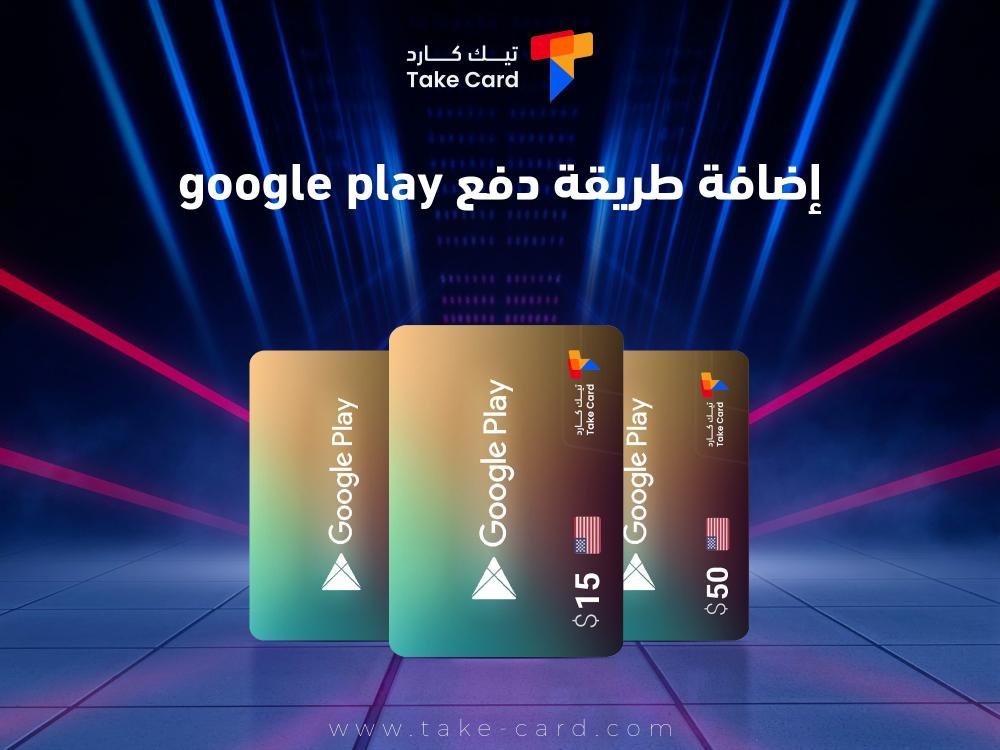
Adding a payment method to Google Play is one of the topics that has seen a rise in search rates, especially since that store is the official and approved store for Android apps, games, movies and tools, and requires linking a payment method in order to be able to purchase paid content, or subscribe to apps and services.
Whether you want to add a bank card, PayPal account, or Google Play balance, this guide from TechCard provides a detailed explanation of how to add a Google Play payment method.
In addition to adding the Google Play payment method, we will also explain the steps, conditions, potential problems, and how to solve them.
Why do you need to add a Google Play payment method?
Adding a Google Play payment method offers you a range of advantages, most notably:
- Buying paid apps.
- Subscribe to services such as YouTube Premium and Google One.
- In-game payments (such as buying gems in Clash of Clans).
- Buy ebooks or movies.
Steps to add a Google Play payment method via phone
- Open the Google Play app on your Android device.
- Click on your profile picture in the top right corner.
- Select Payments and Subscriptions, then Payment Methods.
- Click on Add Payment Method.
- Choose the payment method you wish to add: Credit or debit card (Visa/MasterCard/Mada), PayPal account, or Google Play balance (gift cards).
- Linking the mobile bill (for specific networks).
- Enter the required data and follow the instructions until the addition is confirmed.
Types of payment methods supported by Google Play
The types of payment methods supported are as follows:
Bank cards (Visa / MasterCard / Mada)
The card must be valid and activated for online purchases.
Some Saudi Mada cards have recently become supported.
PayPal account
- Your PayPal account must be activated and linked to a bank card.
- When you select PayPal, you will be directed to log in and confirm the link.
Google Play credit (gift cards)
- Available in retail stores or online.
- Its code is entered under the "Use Gift Card" option.
Payment via Carrier Billing
- Available in some countries, such as Saudi Arabia with companies: STC, Mobily, and Zain.
- The amount is deducted directly from the mobile balance or added to the bill.
Add a payment method via the website
You can add a payment method through your browser by following these steps:
- Go to https://play.google.com.
- From the side menu, select Payments and Subscriptions.
- Click on payment settings.
- Choose to add a payment method.
- Enter the required information (card - PayPal - gift code).
How to activate a Google Play card (gift card code)
- Open the Google Play app.
- Click on the profile picture.
- Choose Payments & Subscriptions > Redemption.
- Enter the 16-digit code.
- The balance will be added directly to your account.
Change or remove payment method
If you wish to update or delete a payment method, follow these steps:
From the app
- Go to “Payment Methods”.
- Click on “More settings”.
- From the browser, you can edit or remove the media.
From the site
- Go to https://pay.google.com
- Log in, then go to the “Payment Methods” section.
Common problems and their solutions
There are some problems you might encounter, such as:
- "Payment declined": This problem often appears when trying to purchase an item. The reason is usually a lack of funds or the card not being activated for online purchases. To solve the problem, make sure there is enough money available on the card, and contact the bank if you are unsure whether the electronic card is valid for online purchases.
- "Payment method not accepted": In some cases, Google Play may reject the payment method you added. To resolve this issue, try a different card or use an alternative payment method such as PayPal or a Google Play card. It's also recommended to ensure that the payment method you're using is supported in your country.
- "An error occurred during processing": This type of error may be due to a temporary connection problem or a technical glitch, so try restarting your device, or deleting the added payment method and then adding it again. In many cases, this simple method resolves the issue.
- "PayPal failed to link": If you are unable to link your PayPal account to Google Play, check that the email address associated with your Google account is the same one used in PayPal. Having a match between the two email addresses helps to complete the linking process successfully without complications.
Tips for a safe and efficient payment experience
- Activate two-step verification to protect your account.
- Do not share your card information with any untrusted party.
- Monitor your purchase history from within Google Play settings or from Google Payments.
- Use gift cards as a safe and value-defined alternative.
TechCard Services
TechCard store offers a range of services, most notably the following:
Google Play 50 Saudi Riyals

The Google Play card for 50 Saudi Riyals from TechCard store allows you to top up your account balance directly and securely to explore the diverse Google Play content, such as apps, games, movies and books.
This card also serves as a practical way to manage your digital expenses without needing to share sensitive payment information. TechCard offers easy purchase and activation, making it a convenient solution for individuals who want to enjoy the Saudi store's services smoothly and quickly.
Google Play service specifications: 50 Saudi Riyals
- Card type: Prepaid electronic
- Card value: 50 Saudi Riyals
- Delivery mechanism: Electronic code upon payment
- Usage: Topping up your Saudi Google Play account balance only
- Validity: Usable until code is activated
- Support: Customer service available 24/7
Features of the Google Play service for 50 Saudi Riyals
- The card allows you to add funds to your account instantly via a code received electronically after purchase.
- The added credit can be used to purchase or renew app subscriptions, buy games, or get digital books and movies within the Saudi store.
- It provides a practical option for those who wish to monitor their digital expenses, as the value is predetermined and does not require bank card details.
- The card from TechCard store guarantees an easy purchasing experience based on clear steps with fast delivery.
- It offers added security, as the card balance can be used without the need to share personal payment information with any third party.
- Flexibility in gifting, making it suitable for giving to friends or family so that each person can choose what suits their interests.
How to use Google Play service (50 Saudi Riyals)
- The Google Play app or store should be opened on the device.
- Go to the Payment Methods section from the internal menu.
- Select the "Use code" option to enter the card number.
- After entering the code and pressing "Collect Value", the new balance is automatically added to the user's account.
Notes on using Google Play service: 50 Saudi Riyals
- This card is valid exclusively for use in the Saudi store.
- When purchasing from the TechCard store, the user receives the code quickly with continuous technical support.
- The card does not require any additional procedures and can be activated directly by following the steps mentioned, whether for managing personal spending or as a reliable digital gift.
Finally, adding a payment method in Google Play is a simple but necessary step to take full advantage of the store's services. Whether you prefer bank cards, PayPal, or paying from your mobile balance, you will find a convenient and secure way to buy easily. Follow the steps we mentioned, and start exploring apps, games, and paid content with confidence and comfort.
Read also: Everything you need to know about how to recharge your Friendi account